Home |User Account | Sync Types | Mapping | Download | Resources | Support | Licenses
Which way to initialize a SyncML server account depends on your own privacy preference. For example, if you don't want to store your contact info on a public server, you may want to install a Funambol SyncML server on your computer, then direct your smart pone/PDA to communicate with the local SyncML server.
The configuration described below for each service should be working for both PC base SyncML clients and smart phone base clients.
Memotoo is a comprehensive online sync service for mobile devices and PCs.
Configuration:
Remarks:
When doing two-way sync or slow sync, the modifications sent from Memotoo server may not include those contacts not existing in the client (Open Contacts), and in other words, Memotoo server will sync only those contacts existing on both sides. In contrast, Funambol server will send those contacts not existing in the client. Also, when sync for the first time, you may have to choose Sync Direct: Sync from Client.
This service is free for up to 40 records.
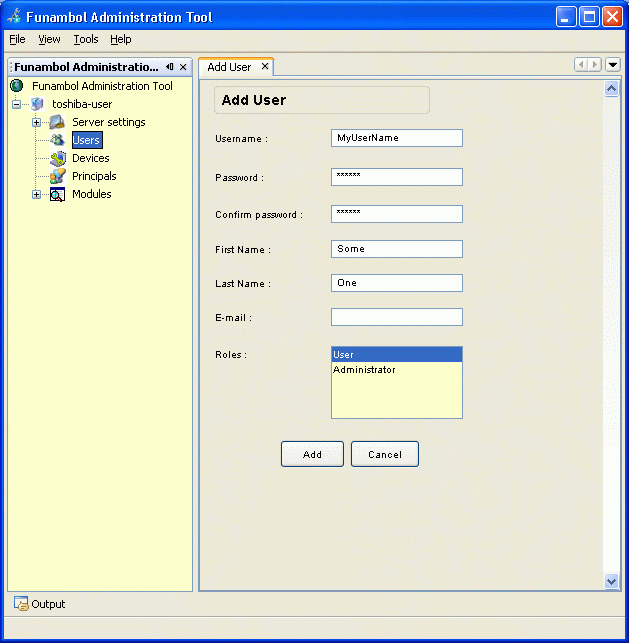
It is assumed that your have installed Funambol server for Windows on your PC or a server machine in LAN. For more details of installing Funambol server, please check here.
Tips:
Remarks:
Even if you have the admin password, you should use a normal user account in the sync client to logon to Funambol server to do synchronization. The administrators' accounts should be used for administration purpose only. As common practice, you should change the password for admin and remember it firmly.