Export Contacts Info
Before exporting, you need to select contacts either in the People List, the Companies List or the search results.
Supported format:
Export to XML
There are two commands:
- Export selected contacts
- Export selected contacts with options
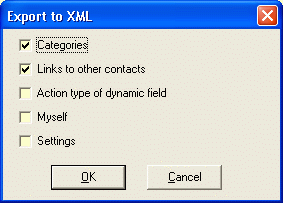
Both commands will export selected contacts into an XML file, which may be imported into another database of Open Contacts. The second command may export categories, linked contacts and settings etc. The first one is handy for transferring contact info between friends. For example, you may send the XML file to you friend by Email, and you friend could import the file into the address book of Open Contacts.
The XML files exported can be used for merging the contact info to another address book database. For example, you can go to the Search window, list all contacts by inputting no keywords, then select them all, and export them. When you import the XML file to another database, categories and relationships will be recovered.
Checkboxes Explained
Categories -- Export categories of selected contacts. As the XML file uses character "/" to denote levels of categories, to avoid confusion, you has better not to have any category name with character "/" inside.
Links to other contacts -- Export relationships of selected contacts. If contact A associated contact B is not selected while contact B is selected, contact A won't be represented in the XML file and will not be restored therefore.
Action type of dynamic field -- Include info of action type of dynamic fields. This option is useful when you try to write an XSLT file to manipulate the XML regarding to action type of dynamic fields.
Myself -- Include contact info of "Myself" in the XML file as a separated node "Myself", even if the record of myself is not selected in the list. The "Myself" node is useful for forming distributed social networking.
Settings -- Most Open Contacts' settings are stored inside the database rather than the host environment. Almost all settings defined in the Options window will be exported, along with predefined fields, predefined sections and layout profiles.
Linked Local Photo -- Export linked local photo file into the XML file as embedded BASE64 data. When import from such file, the photo data will be restored into files stored in default Files directory under the working directory.
With the combination of options "Categories", "Links to other contacts" and "Settings", you may export all essential data in the database to XML file. You may use this setting of exporting as an alternative way of backing up the database. As the XML file is semantic, thus, if you want to import database to other information systems, such XML file will help you to restore all essential info in Open Contacts database.
Please be aware, there are design limitations of exporting contacts:
- When recovering categories from an imported file, the order of categories in the same level will be undefined, as the exported categories does not have info of ordering. In addition, as exported categories are associated with exported contacts, thus, not all categories of the source category tree will be restored, but only those associated with exported contacts. For example, you have category "This" and none of exported contacts falls into the category, thus, category "This" will not be exported.
- If you choose to export relationships as well, only when you export all contacts, the relationships will be fully recovered. If you selected partial contacts, some linked contacts of relationships may not be included in the selected contacts, thus respective relationships will not be restored.
Notes:
If you want to share contact info between staffs in the same office with Local Area Network, you may consider using network mode of Open Contacts.
Copy to clipboard as indented text
This command will export selected contacts as indented text to clipboard. You may then paste the text from clipboard to any text editor for further processing.
Copy Current Section to Clipboard
In the Edit window, select a section by focusing on the section name box or any field box of the section, then press "Ctrl+E", you will get field contents separated by line breaks.
For example, If you focus on the Address section, you will get text like below
62, Radke Road
Fenlin
NSW
2063
This feature is handy for printing a single mailing label.
Export to CSV/Excel
In Open Contacts, data fields are grouped in sections, therefore, You need to define which fields of sections will be exported, and you don't need to export every fields. The mapping will be saved in an XML file. The exporting will be easier if you have consistent management upon sections and dynamic fields.
Step 1: Define the mapping between columns of the CSV file and Fields of Open Contacts
Basic info like full name, surname and notes etc. will be all exported. You will need to define which sections and fields will be exported.
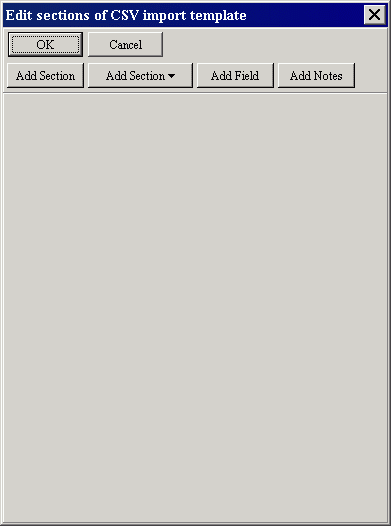
Run command [Main menu -> Tools -> Export -> CSV -> Add CSV Export Template], you will get the following window.
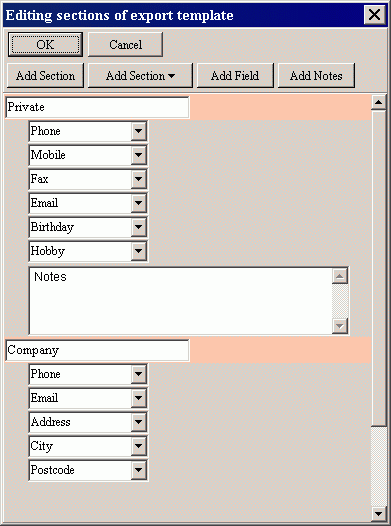
In this window, you will add sections and fields as you can do in the edit window of a contact. The difference is, that you don't need to input field values. To remove/ignore a field/section, you may simply clear the field/section name. You may then press OK to save the settings into an XML file.
Step 2: Export to CSV with predefined mapping
After selecting contacts from either the People List or the Company List, run command [Main menu -> Tools -> Export -> CSV -> to CSV], then you will open an XML file of the export template you defined, then save the results into a CSV file.
In the example above, the CSV file will have 18 columns, including 6 columns of basic info and 12 columns of fields of sections.
Hints:
The template may include all sections and fields in the address book database. As the data fields of Open Contacts are dynamic and flexible, those data fields without filled values will be empty in the CSV file. For example, for David Smith, you only input Private Phone and Private Mobile, and the CSV file will have other columns empty. Though Open Contacts does not impose restriction on how you can define section names and field names, if you want to export info frequently, you have better to keep consistent naming conventions for section names and field names.
After exporting data into a CSV file, you may print contacts in desired formats using a good label printing software like Avery DesignPro through ODBC data connection.
Export to HTML
Basically Open Contacts exports selected contacts to XML and then merge the XML data with an XSL style sheet to produce HTML data into a file or Internet Explorer. You can use a Web browser to print the result.
In the "Import/Export" tab of the Options window, you may define "HTML target of exporting".
There are 5 predefined formats of HTML output:
- Full contact info
- Phone numbers only
- Email addresses only
- Communication methods only
- hCard embedded in HTML
If you have some advanced knowledge of XML/XSL, you may customize the looks of HTML results. Please refer to "XML Explained".
Export to vCard
You may export one contact to one vCard, multiple contacts to multiple vCard files, or multiple contacts to one vCard files. Please check the Import/Export tag of the Options window.
To alter the mapping between Open Contacts' fields and vCard fields, you may modify ExportvCard.xml located in the Templates directory.
Note:
Though Open Contacts can export multiple contacts into a vCard file, Open Contact will handle one vCard per file.
Export to iCalendar for birthday reminder
Birthday reminder services can naturally be part of any calendar program such as Mozilla Sunbird or Google Calendar. A birthday reminder could be just a calendar event plus an alarm of popup, Email or SMS.
For example, Andy Smith's birthday is on 1978-05-04, then in your favorite calendar program, you may create a yearly repeating event from 2008-05-04, and define an alarm with such properties: 1 day before the event, and Email action.
It is conventional and natural that you store birthday information in an address book, eventually you can create birthday reminder events from the contact information. OC Birthday Reminder Helper is a set of procedures helping you to generate birthday reminders from Open Contacts.
Basically, the helper will create an iCalendar file containing birthday reminder events, which may be imported into most popular calendar programs.
Built-in Helper in Open Contacts
From version 5.2.3, Open Contacts has a built-in function to generate birthday reminders in an iCalendar file from selected contacts of the people list or the search results.
Steps:
- Select contacts, and export to an iCalendar file through [Main menu -> Output -> Export to Birthday Reminder].
- Import the iCalendar file into a calendar program.
Remarks:
- If some of the selected contacts do not have birthday information defined, Open Contacts will prompt the names of those contacts. You may then verify those contacts and do it again.
- The date format supported in Open Contacts is ISO format: YYYY-MM-DD, or MM-DD.
- If someone was born in a leap year, for example on 29th of February, the yearly reminder event will be created on 28th of February in a normal year.
Tips:
- Among all contacts stored in Open Contacts, you may want to celebrate birthday for only some of them. It is convenient to put these contacts into a category.
- Many calendar programs such as Mozilla Sunbird and Google Calendar supports default alarm settings for events. Before importing the iCalendar file, you may verify if those settings are suitable for your need. For example, a common setting is to make sure the calendar program will remind you one day before someone's birthday through popup.
Tested Calendar Programs
OC Birthday Reminder Helper was tested upon the following calendar programs.
For details of using these calendar programs, please visit respective user support forums.
References